Simple class attendance
Know who attended every class—in person or online.
A simple attendance record for the classes you run. Give each session an event, welcome people on a shared device or through a web link, and find its check-ins afterward.
- In-person and browser check-in
- Attendance organized by event
- Returning people, one visitor list
Make it your own
Give each session a recognizable name
These are examples of separate events you can create. Choose names that your participants and team will recognize.
Beginner class · Monday evening
Keep this session’s recorded check-ins together and find them again with the event filter.
Weekend skills workshop
Keep this session’s recorded check-ins together and find them again with the event filter.
Online practice session
Keep this session’s recorded check-ins together and find them again with the event filter.
A simple routine for your sessions
Use one event per session
For a weekly class, create an event for each date you want to review separately. Reusing one event groups those check-ins together.
Make the entrance clear
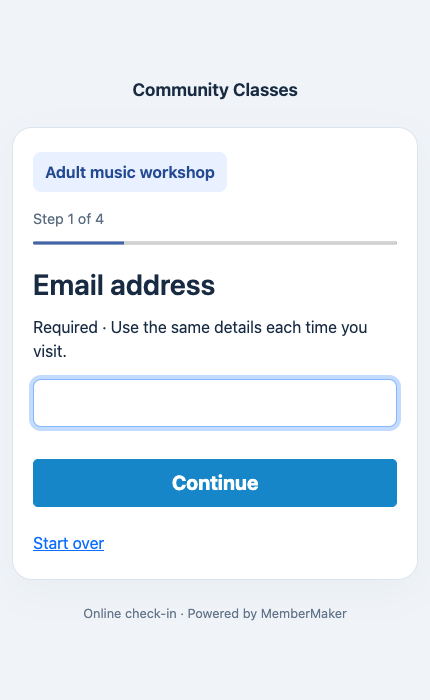
Tell people which identifier to use and place the device where arrivals can see it. For remote participants, share the matching event link.
One event, one attendance record
From the first arrival to the last check-in
Create a separate event for each session you want to review independently.
Step 1
Create your event
Give the session a recognizable name. Add an optional date, time, and description. Dates are informational: they do not automatically activate or expire a session.
Step 2
Choose how people check in
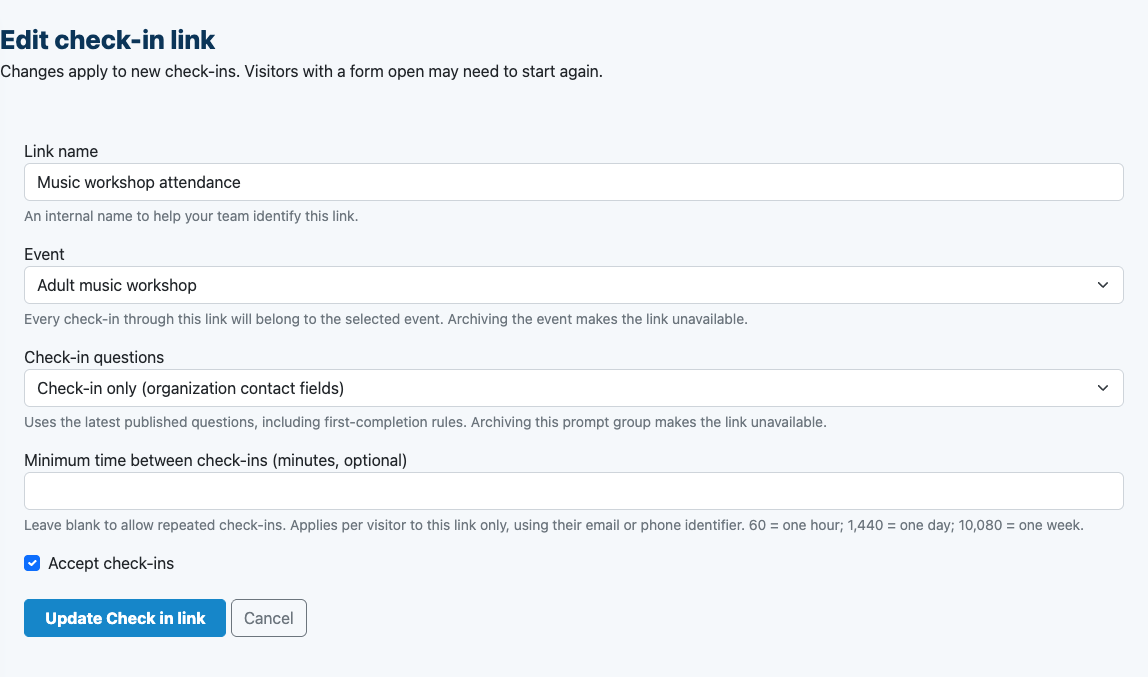
For in-person attendance, select the active event on each app device. For online attendance, choose the event when creating a web check-in link and share that link with participants.
Step 3
Review who attended
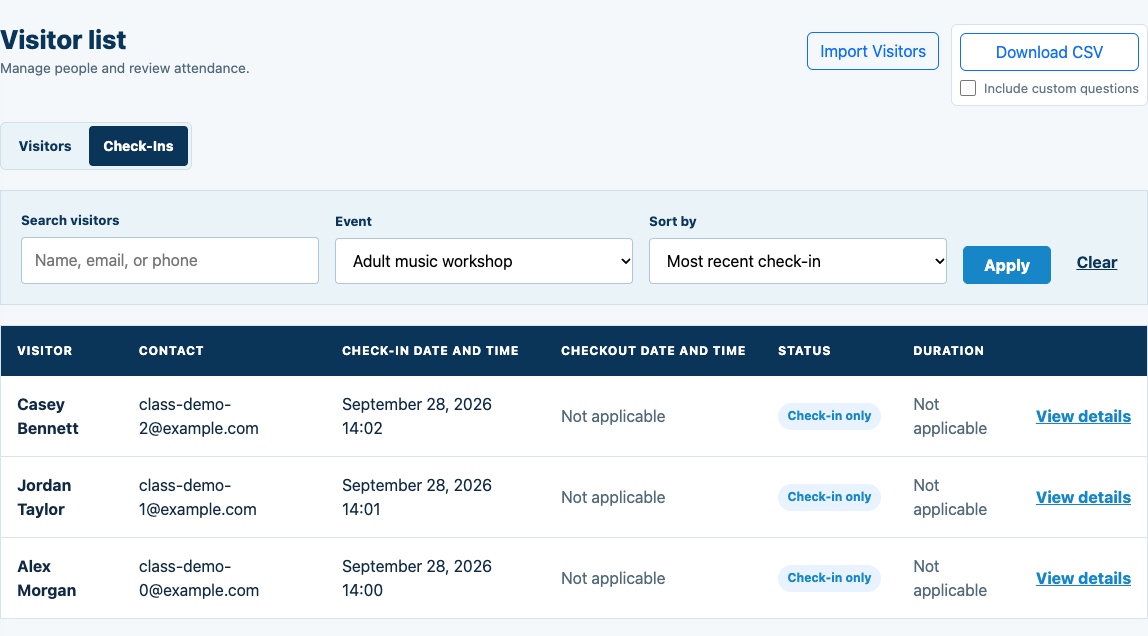
Use the dashboard’s Check-Ins tab and event filter to review the session’s recorded attendance. Export CSV when you need to work with it in a spreadsheet.
Event-specific setup requires Events to be enabled for your organization. Sharing web check-in links also requires online check-in to be enabled. Creating an account does not automatically enable these features.
Explore simple class attendance →The actual workflow
Choose the event. See its attendance.
Examples below use fictional participants in a local demonstration organization.
A familiar welcome for new and returning people
Bring your visitor list
Import names and emails from CSV, with optional phone numbers. Importing does not create visits or send emails.
Ask what you need
Use optional custom questions to collect relevant session information. Returning participants follow the flow’s existing completion rules.
Take your attendance with you
Export dashboard records to CSV. Include custom questions when you need the answers recorded on each check-in.
Designed here for adult and general classes. Each participant needs their own identifying email or phone. Use your existing tools for enrollment, scheduling, payments, and any participation or progression assessments.
Class Attendance App for In-Person and Online Classes: questions
Can I keep separate attendance for each session?
Yes. Create a separate event for each session you want to review independently. Select that event on the app device, or associate it with a web check-in link.
Do returning participants have to start over?
The check-in flow looks up the participant using the configured email or phone identifier. Returning participants follow the information and question requirements for that flow. Each person needs their own identifying email or phone; shared family profiles are not part of this workflow.
Can I bring an existing participant list?
Yes. Import Visitors in the web dashboard accepts a CSV with required names and emails and optional phone numbers. Existing emails are skipped. Importing adds people without creating attendance or sending invitations.
Does an event date automatically open a class?
No. Create and select each session yourself. The app’s active event is selected independently on each device, and a web check-in link uses the event associated with that link.
Can I include custom questions in an attendance export?
Yes. Enable Include custom questions when downloading the dashboard CSV. Check-in rows contain answers recorded on that visit; missing answers remain blank.
Make the next check-in simple.
Start with your web account, then prepare your attendance workflow.