Let visitors check in on their own phones with a web link or QR code, or turn a tablet into a self-service station. Choose the setup that fits your gathering.
Create a web account and set up your organization in the dashboard. Choose email or phone for identification, configure kiosk settings, and build and publish your visitor questions.
Once your dashboard is set up, download the app on your iPad or Android tablet when you’re ready to prepare the kiosk. Sign in to the same account and select your organization.
Need sign-out too? Enable it under Sign-in Experience → Checkout settings and choose a checkout window. See checkout details →
Step 2
Place the tablet where guests arrive
Welcome table: Face the screen toward guests and leave room for bags or handouts.
Lobby: Use a counter or small table near the entrance, clear of the doorway.
Check-in station: Leave room to queue and move on. Keep badges and handouts beside the tablet.
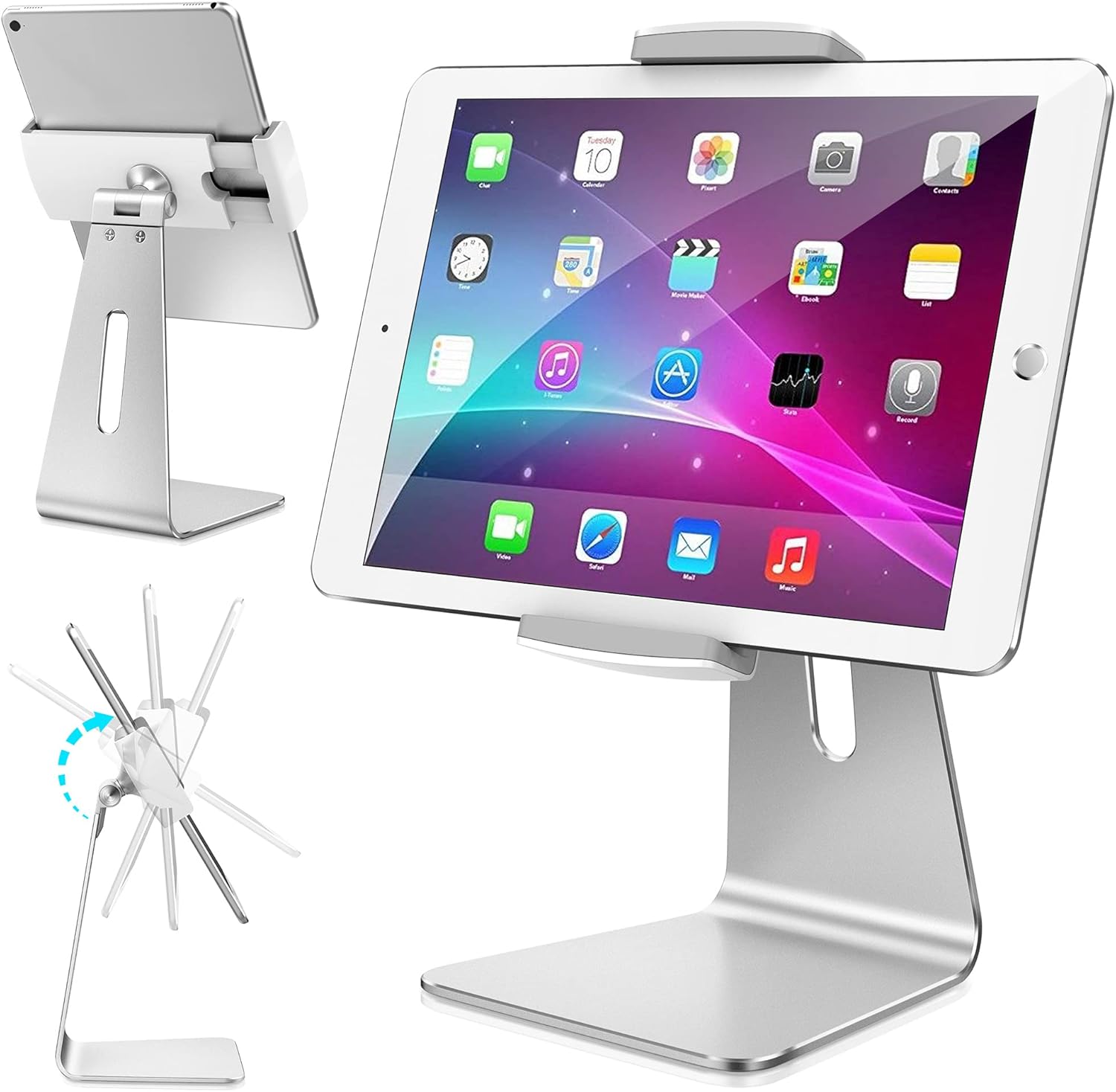
Use a stable stand, set back from the edge. Adjust its tilt to reduce glare and check that seated and standing visitors can reach the screen. Route the charging cable behind the table, away from foot traffic, and add a “Please sign in here” sign.
A tabletop mount keeps the screen steady and lets you adjust its viewing angle.
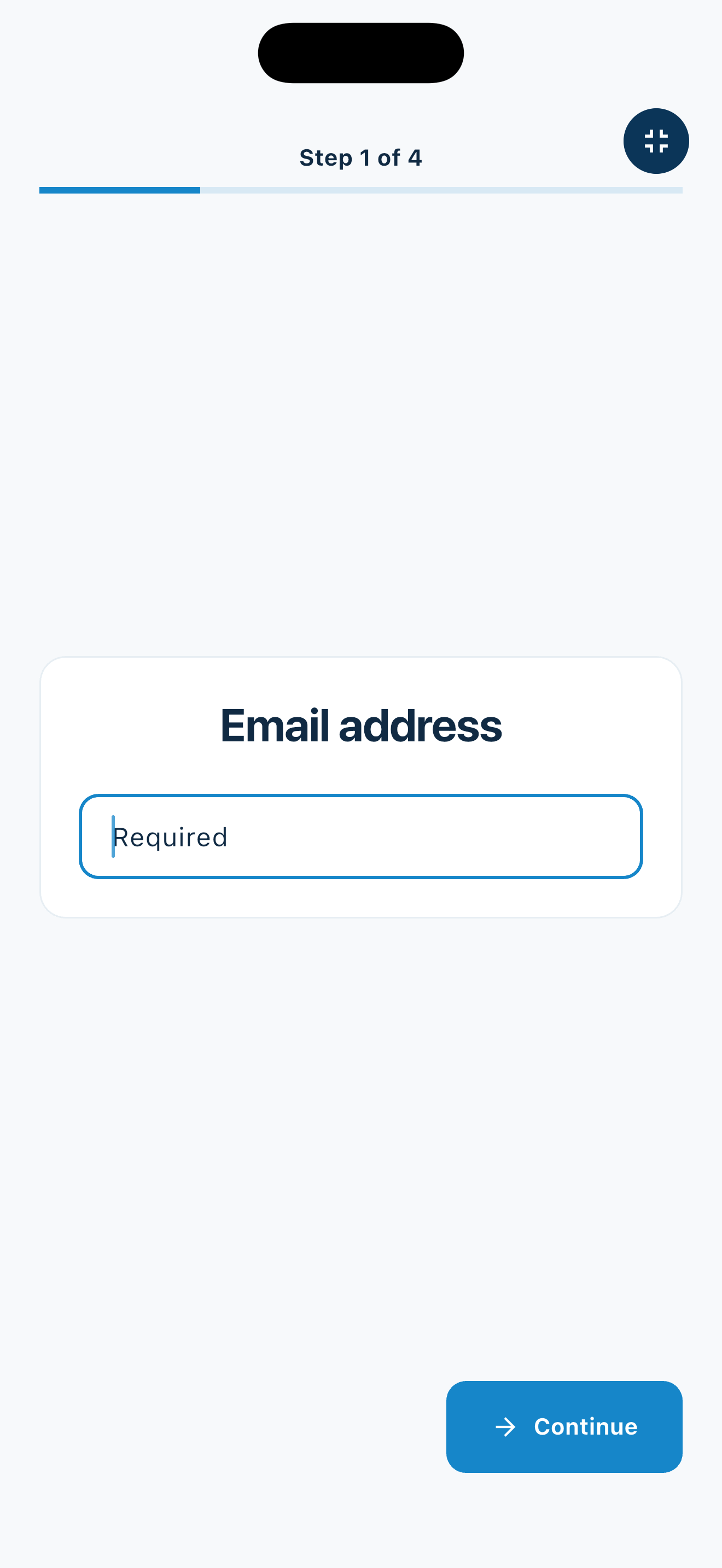
Set a device passcode for staff, then tap the Fullscreen icon in MemberMaker’s kiosk toolbar. This hides navigation and setup controls so guests can focus on check-in.
To return to the controls, tap Exit fullscreen and authenticate on the device.
Next, use your tablet’s single-app controls below to keep visitors in MemberMaker.
The guest view in fullscreen mode.
iPad: Guided Access
In Settings → Accessibility → Guided Access, turn it on and set a passcode. Adjust Display Auto-Lock for your session.
With MemberMaker open, triple-click the top or Home button and select Guided Access.
Keep Touch and Software Keyboards enabled, then tap Start.
To exit, use the Guided Access shortcut, authenticate, and tap End. Shortcuts vary on older iPadOS versions.
With fullscreen and Guided Access or app pinning enabled, complete a visit from the guest’s side of the table. Enter the required answers, submit, and confirm the success screen and saved visit. If checkout is enabled, enter the same identifier again to test sign-out.
Keep one staff member nearby who knows how to help and unlock the tablet.
After the event, review visits in the dashboard and export a CSV if needed.
Ready to welcome visitors?
Create your organization, manage your questions, and review attendance in the web dashboard.
Let visitors check in on their own phones. Share a link online or display a QR code at your venue—no shared tablet needed.
You and your visitors can use this option entirely in a browser. Organizers need a MemberMaker web account; visitors do not need an account or an app. An internet connection is required to submit a web check-in.
Create your organization’s link. Open your organization in the dashboard and select Virtual Check-in in the sidebar. On the Check-in links page, choose Create link. Online check-in must be enabled for your organization to see this option.
Choose the check-in settings. Give the link a recognizable name, select an optional question group, and associate an event if you want to keep that session’s attendance together. Event association requires Events to be enabled. You can optionally set a minimum time between check-ins for each visitor on the link.
Share a link for remote attendance. Select Copy link and paste it into your usual email tool, event invitation, or meeting chat. Tell visitors when to check in. They open the link, identify themselves by the configured email or phone, complete any required information and questions, and submit.
Print a QR code for your business or event. Select Print QR code beside the link, or on its detail page. In the new preview tab, select Print. Print at 100% scale with browser headers and footers turned off. Place the code at reception, on a welcome table, or near the class entrance with a separate “Scan to check in” instruction. Keep the white border clear and test it with a phone.
Email the QR code if needed. Choose Save as PDF in your browser’s print dialog and attach the file using your email tool. Include the clickable check-in link too, so someone reading on their phone can tap it directly. MemberMaker does not send the invitation email for you.
Test and review attendance. Open your own link or scan its QR code, complete a test check-in, and confirm it appears in the dashboard’s Check-ins list. Filter by event if applicable, and download a CSV when needed. A scan alone does not record attendance; the visitor must submit the form.
Web links record check-ins only. They do not check visitors out or verify their location or participation in an online meeting. Pause a link to stop check-ins temporarily; an organization admin can permanently invalidate it. Existing printed codes follow the same link settings.