Shared class attendance
Start your parent-and-child class with a simpler sign-in.
When an adult and child take part together, both belong in the attendance record. Let the adult check in, choose their saved child, and get ready for the session.
- No email or phone needed for additional people
- Saved people for the next visit
- App kiosk and mobile web/QR check-in
For your program
Built around people attending together
Music, movement, and play sessions
For a family music class or parent-and-child movement session, the adult completes the usual check-in first. Their child can be selected from a saved list without a separate email address, phone number, or repeated questionnaire.
Art workshops and family learning
Give a family pottery workshop or shared learning session its own event. Each additional attendee uses the adult’s selected event, keeping the group’s visit records together under the session you prepared.
Returning families without repeated typing
Save a named child during the first visit and select them after future primary check-ins at the same organization. If a sibling joins next time, add a separate person and select the attendees for that day. Identical names do not merge people.
From arrival to attendance
Check yourself in, then your people.
Enable Group check-in from the Group/Family Checkin page in your organization’s app or dashboard menu. The setting is off by default, and it is also available in Kiosk Settings.
Use the app on a shared device, or share a web check-in link or QR code. Visitors using the web flow do not need to install the app.
- Complete the usual check-inThe first visitor provides the identity details and answers required by your organization. Their own attendance is recorded first.
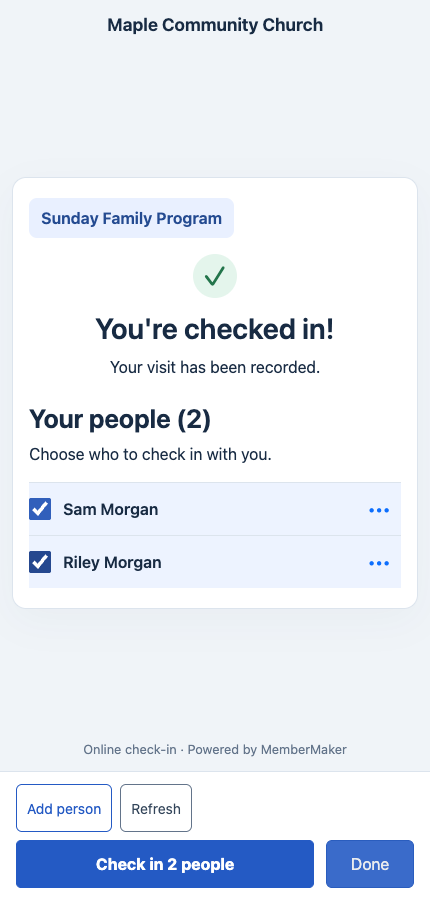
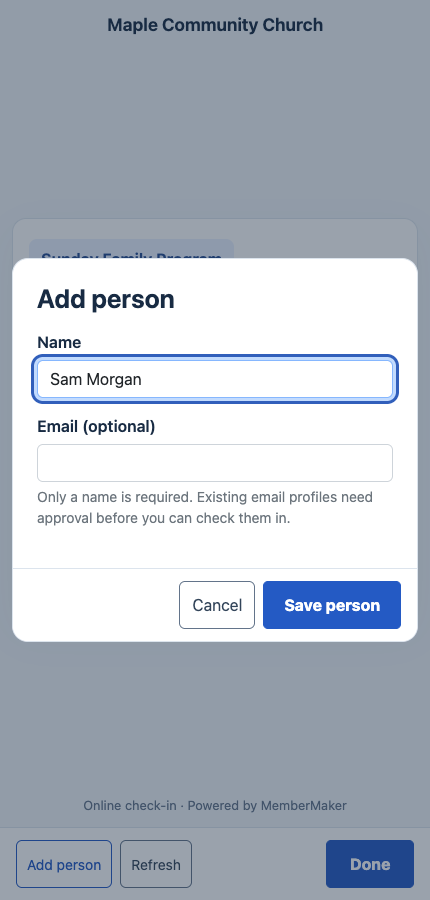
- Select saved people or add a nameAfter confirmation, choose who is here today. Add someone new with a name and optional email. Adding alone does not record attendance.
- Check in the selected peopleEach selected person gets a separate visit using the primary check-in’s event. Additional people do not repeat the contact fields or questions.
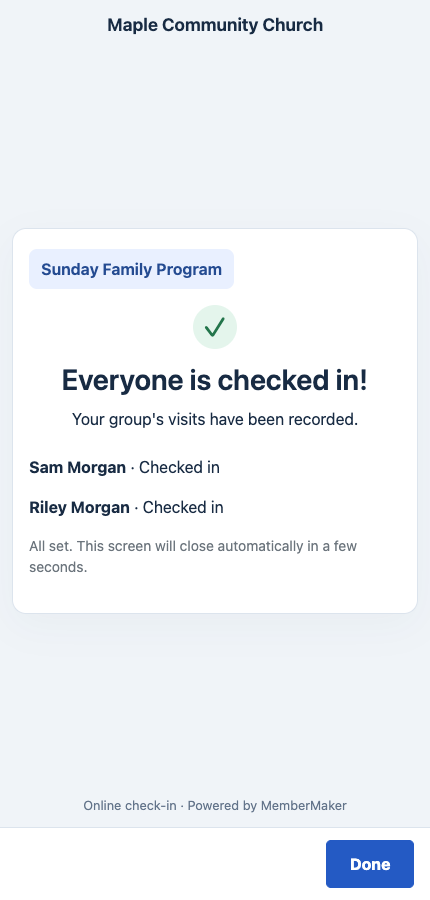
- Review the result and finishCheck each person’s result before leaving. Saved people remain available for future visits to the same organization.
See the actual web experience
From a name to a recorded visit.
Captured from a local demo account for Maple Community Church. All names and details are fictional. Tap a screenshot to view it at full size.
1. Add someone by name
2. Choose who is here today
3. See each successful check-in
In practice
A weekly family music class
Casey checks in for Tuesday family music and selects a saved child. Both receive separate attendance records for that session. The instructor can review those visits afterward while bookings and lesson payments remain in the studio’s existing system.
Your setup checklist
- Enable group check-in and name each session clearly.
- Ask the adult attending the class to complete the primary check-in.
- Choose a different process when each child must answer separate intake questions or attend a different class.
Use a separate event for each session you want to review independently. Event-specific setup requires Events access. You can also record group attendance without an event.
Choose the right attendance flow for your program.
Group check-in works best when the primary visitor and their selected people attend the same gathering. The primary visitor is counted too, and all additional visits inherit that event. It does not assign people to separate rooms or collect a separate questionnaire for each child.
For children’s programs, continue using your established registration and safeguarding procedures. MemberMaker does not provide security labels, authorized pickup verification, or proof of guardianship.
Before you get started
Parent & Child Class Check-In and Attendance: questions and answers
Will this track class credits, subscriptions, or lesson payments?
No. Group check-in records visits. It does not deduct class credits, collect tuition, verify bookings, or schedule lessons. Keep those tasks in your existing studio or program tools.
How do I turn on group check-in?
Open Group/Family Checkin in your organization’s dashboard or app menu, enable Group check-in, and save. The same setting is also available in Kiosk Settings. It is off by default and applies to the app kiosk and web/QR check-in for that organization.
Do children need their own email or phone number?
No. Additional people can be added by name alone. Email is optional. The primary visitor still completes your normal check-in fields and questions; selected people do not repeat them.
What happens if an email already belongs to someone?
An existing member must approve the link by email before they can be selected. Pending links cannot be checked in. Name-only additions create separate people and never match or merge by name.
Can family members attend different events in the same submission?
No. Each additional visit uses the primary visit’s event, or no event if none was selected. Event-specific setup requires Events access for your organization. Group check-in also works without an event.
Does checking in the group check anyone out?
No. Group check-in is offered after a successful check-in, not after checkout. Selecting someone who is already present does not check them out.
Ready for your next gathering
Make the next family arrival easier.
Create your web account, set up your organization, and enable Group check-in when you are ready.