Ask a follow-up
Which team would you like to join?
Conditional logic for visitor check-in
Build visitor check-in forms with conditional logic. Turn an answer into a relevant set of questions, then bring everyone back to the shared flow. One form can welcome different visitors without asking everyone everything.
One decision. Different paths.
Conditional questions keep the follow-up at the decision point. For example, a volunteer check-in can ask whether someone is joining for the first time.
Which team would you like to join?
Leave this branch empty to continue directly.
Example flow. Configure the questions and answer choices for your own organization.
Build it in the dashboard
MemberMaker saves reusable sets of check-in questions as prompt groups. Manage each branch on its own screen so a longer form stays easier to organize.
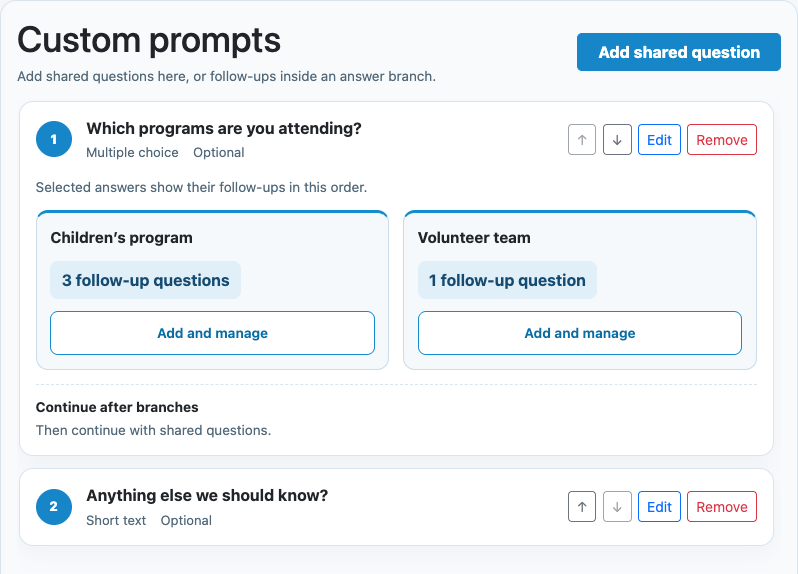
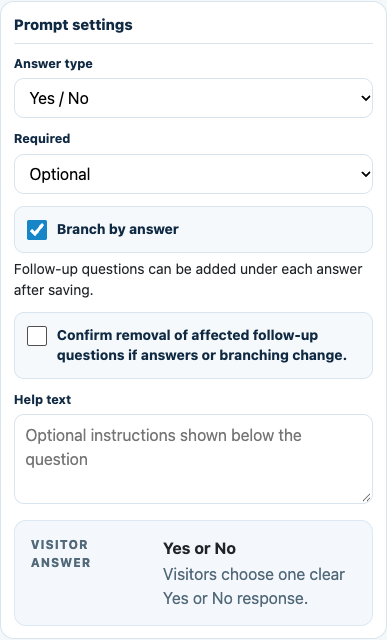
Choose a Yes/No, single-choice, or multiple-choice question and enable branching in its prompt settings.
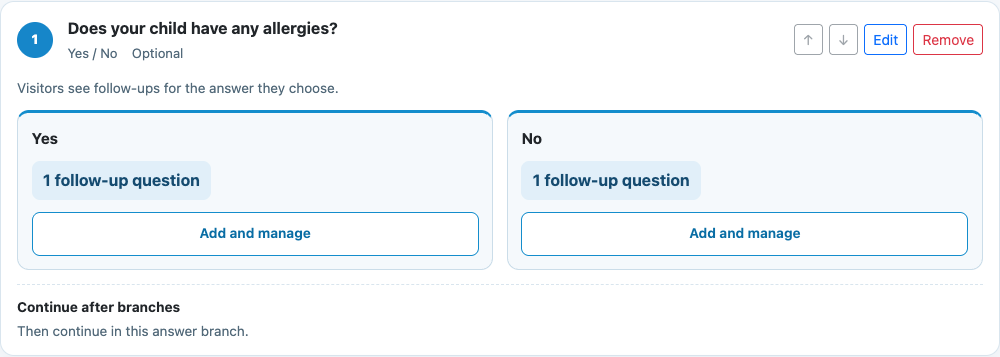
Open an answer’s branch, add questions, and arrange them in order. Add another decision question inside a branch when you need a more specific follow-up.
Keep questions for everyone in the main list after the decision point. For multiple choice, selected answers show their branches in the configured order.
Publish your prompt group and choose it for your app kiosk or web check-in link. Try each answer, including skipped optional questions, before welcoming visitors. Update kiosk apps and synchronize before using branching offline.
Make the questions fit the visit
Ask a parent which programs they are attending, then show relevant follow-ups. After the parent checks in, Group check-in can record attendance for linked children without asking them the same questions again.
Explore family check-in →Ask whether someone is new, collect their interests when they are, and keep returning volunteers moving to the shared session question.
Explore volunteer check-in →Let attendees select the activities they are joining. Ask each selected activity’s follow-up questions, then continue to questions for everyone.
Explore workshop attendance →The same question paths, two ways to arrive
Use a supported iPhone, iPad, or Android device. The updated app follows your synchronized branches offline and saves check-ins for upload when the connection returns.
Share a check-in link or QR code for visitors to open on their own phones. Use the link at an in-person event or share it with an online gathering. Browser check-in needs an internet connection.
Explore QR check-in →Branching questions, explained
Conditional logic, also called branching logic, chooses the follow-up questions a visitor sees based on their answers. In MemberMaker, you attach follow-ups to answers on a decision question. After those follow-ups, the visitor continues to shared questions.
Yes/No, single-choice, and multiple-choice questions can branch. Follow-ups can use any supported prompt type: short text, long text, Yes/No, single choice, multiple choice, number, or date. A follow-up decision question can contain another set of branches.
With multiple-choice branching, the visitor completes follow-ups for each selected answer in the configured order, then continues to shared questions. Unselected branches are skipped.
Yes. Shared questions continue after the relevant branches. An empty branch goes straight to the next applicable question. Skipping an optional decision question skips its follow-ups.
A branching-capable MemberMaker app can use previously synchronized published questions offline and queue check-ins until connectivity returns. Synchronize the form before going offline. Web and QR check-in, along with dashboard editing and publishing, require an internet connection. Older apps must be updated before using branched forms.
Yes. Ask the primary visitor questions about the programs their family is attending and show relevant follow-ups. When Group check-in is enabled, they can add or select linked people after their own confirmation. Additional people receive separate attendance records without repeating the primary visitor’s questionnaire. This is not a separate questionnaire for every child or an authorized-pickup system.
The question path updates to match the new answer. Answers from abandoned branches are cleared, while answers to shared questions are preserved. Required questions on unselected branches do not block check-in.
Start in your browser
Create a web account to manage your organization. When you’re ready for guests, install the kiosk app on your iPad or Android tablet.
Set up your questions and kiosk settings in the web dashboard. See live sign-ins here once your kiosk is running.
Create a web accountReady to set up your kiosk? Download the app and sign in to the same account.