ONE LINK. ON PAPER OR ONLINE.
QR code sign-in.
A simple welcome,
wherever you put it.
Turn your check-in link into a printable QR code. Post it in your business, set it at the door of your class, or email it before an event. Guests scan, complete their check-in, and join your attendance records.
No visitor app. No visitor account. Just a phone camera and a browser.
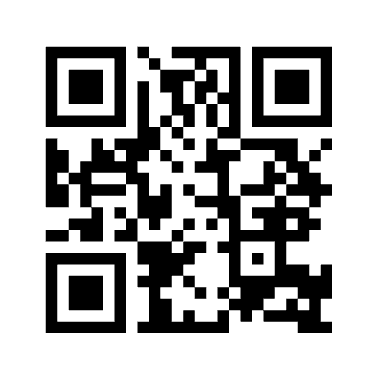
Demo code opens membermaker.app.
FROM YOUR DASHBOARD TO YOUR FRONT DOOR
How to create and print your QR code sign-in
Start in your organization’s dashboard. Online check-in must be enabled for the organization to access Check-in links. The screenshots below show the actual interface with fictional example data.
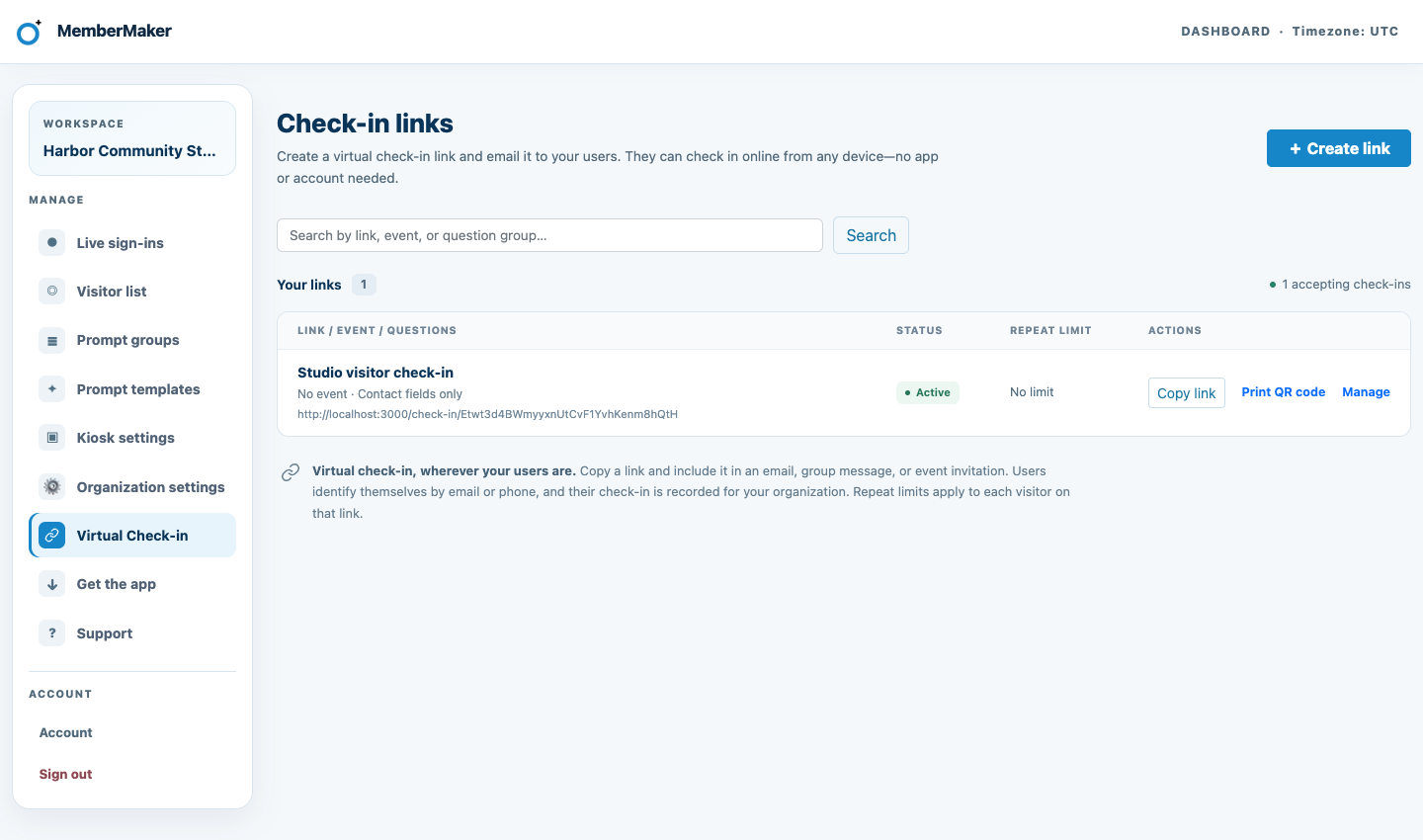
Open Check-in links
Choose Virtual Check-in in the dashboard sidebar to open Check-in links. Create a link with the contact fields and optional questions you need, or use an existing link.
Select Print QR code right from its row. You can also open Manage to review the link first.
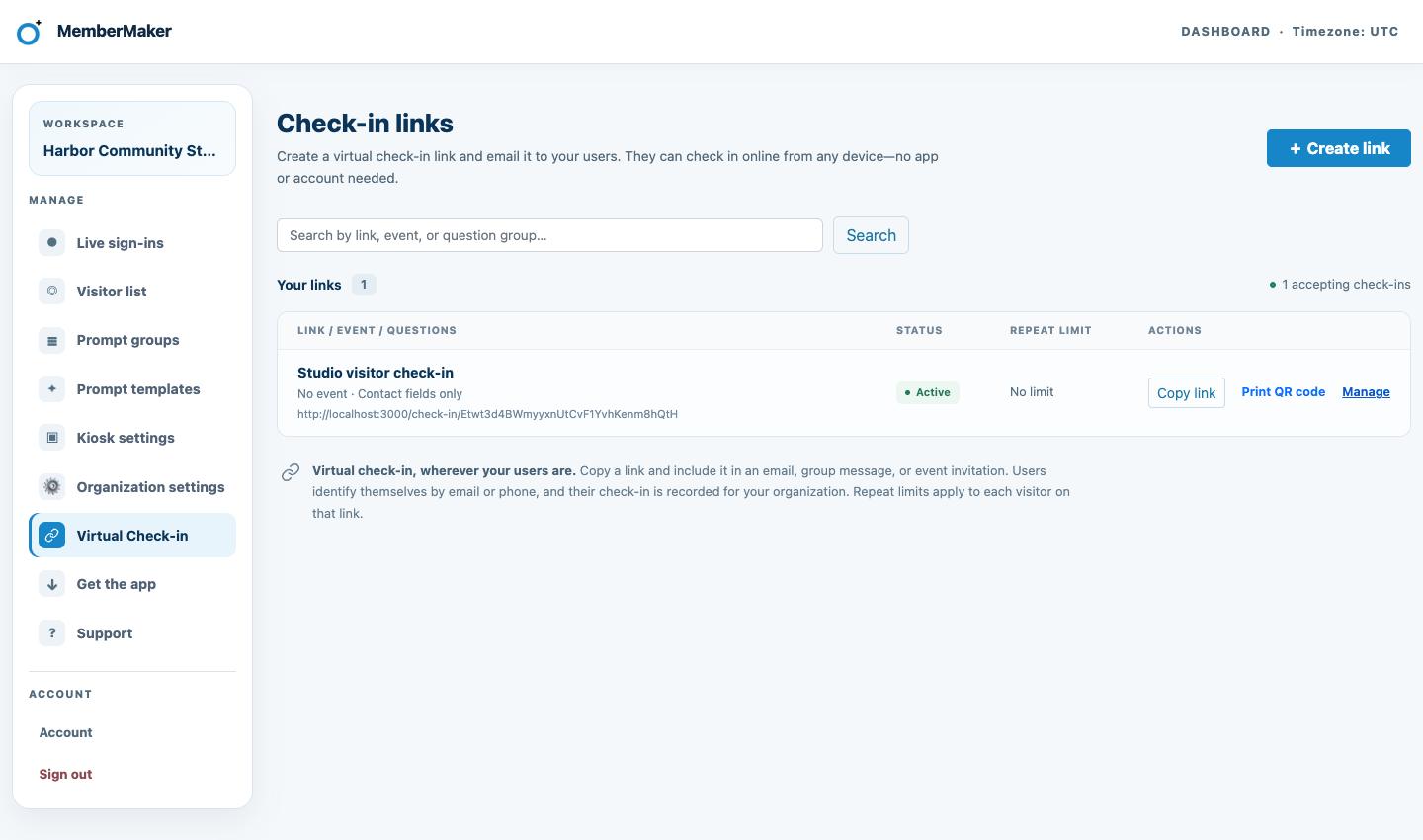
Check the destination
The detail page has the same Print QR code action beside Copy link and Open check-in. The QR code opens that exact check-in URL.
Test the form before putting up your sign. For event attendance, associate the link with the right event before sharing it.
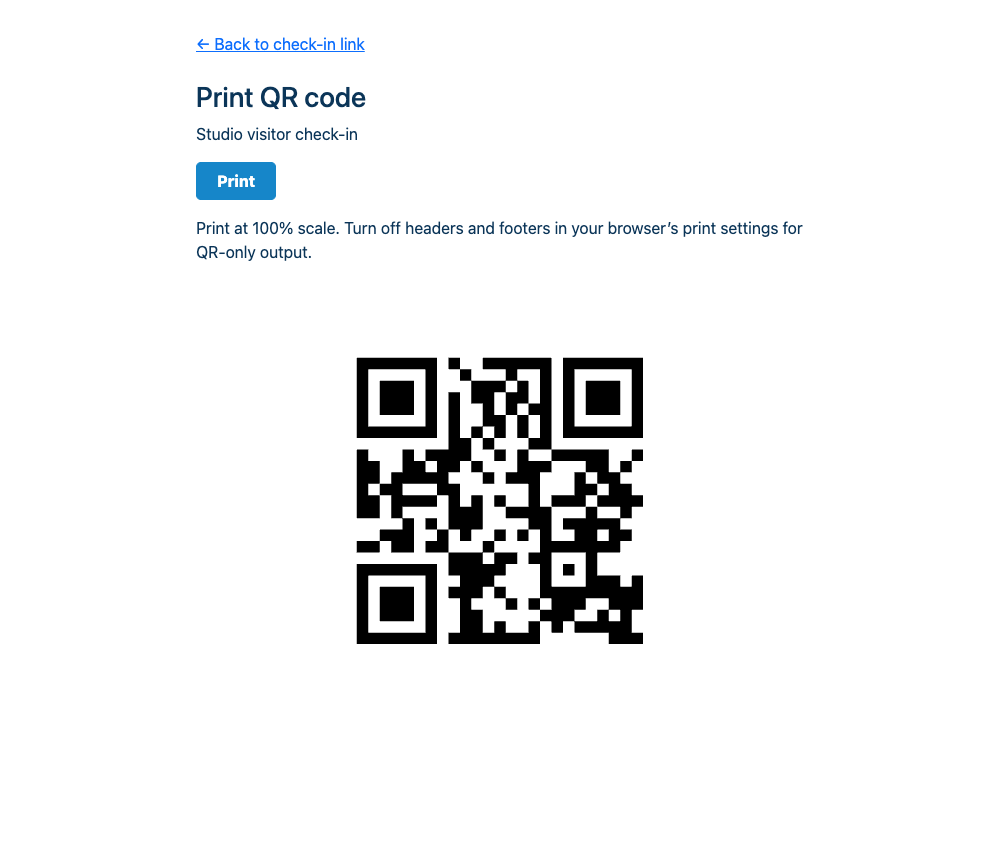
Print, or save a PDF to email
The preview opens in a new tab. Select Print and choose your printer, or use Save as PDF in the print dialog to create an email attachment.
Print at 100% scale and turn off browser headers and footers. The output contains only a black-and-white QR code, about 10 cm square, with a clear white border. It fits Letter and A4 paper.
MEET PEOPLE WHERE THEY ARRIVE
Where to put your QR code sign
At your reception desk
Place the printout on a stand at your business’s welcome counter. Add a separate “Scan to check in” instruction beside it, where visitors can see it before asking for help.
Outside a class or event room
Post it near the entrance or on a welcome table for workshops, rehearsals, club meetings, and adult classes. Use an event-specific link when you want to review attendance for that session.
In an email invitation
Attach the saved PDF to your usual email. Include the clickable check-in link too: people reading on the same phone should be able to tap rather than scan. Tell guests when you want them to check in.
On a screen during a meeting
Display your QR code on a welcome screen or presentation slide. For online sessions, also paste the link into the meeting chat so everyone has an easy way to open it.
MORE THAN A QR CODE GENERATOR
Keep the check-in, not just the scan.
MemberMaker connects the form to your visitor list and attendance history. Returning visitors are looked up using the configured email or phone identifier, and required details or questions appear as needed.
Review submitted check-ins in the dashboard and export them to CSV. Associate a link with an event to organize attendance by session when Events is enabled.
A scan opens the form; attendance is recorded after submission. The shared code does not verify someone’s location or how long they stayed.
QR code sign-in questions
How does QR code sign-in work?
A visitor scans your shared QR code with their phone camera, opens the check-in page, and completes the form. MemberMaker records the submitted check-in in your organization’s attendance history. Scanning alone does not record attendance.
Do visitors need to download an app?
No. Visitors check in through their web browser without a MemberMaker account. They need an internet connection. Your team uses the MemberMaker dashboard to create and manage the link.
Can I email the QR code instead of printing it?
Yes. In the print preview, choose Print and use your browser or operating system’s Save as PDF option. Attach the PDF using your usual email tool, and include the check-in link in the message so people reading on their phone can tap it directly. MemberMaker does not send the invitation email for you.
Can I use a QR code for a specific event or class?
Yes. Associate the check-in link with an event to keep those check-ins together, then filter attendance by event. Events must be enabled for your organization. Create and select sessions yourself; event dates do not automatically activate a link.
Does the printed QR code change when I edit the link?
The QR code points to the existing check-in URL. Changes to the link’s settings or associated event apply through that URL. Pausing stops check-ins temporarily; permanent invalidation or deletion makes existing printed codes unusable for check-in. Use a separate link when you need a separate event sign.
Can I stop repeated check-ins?
You can set an optional minimum time between check-ins for each visitor on that link. Leave it unset if you want to allow repeated check-ins without that limit. A QR code is a shared check-in link, not an individual admission ticket or proof of physical presence.
Can I print a QR code for a paused link?
Yes. The preview shows a notice while a link is unavailable. Visitors can check in once the link and its selected content are available again. Permanently invalidated links cannot be printed.
Put an easier sign-in at your door.
Create a check-in link, print its QR code, and give your visitors a simple place to start.
Create your check-in link